
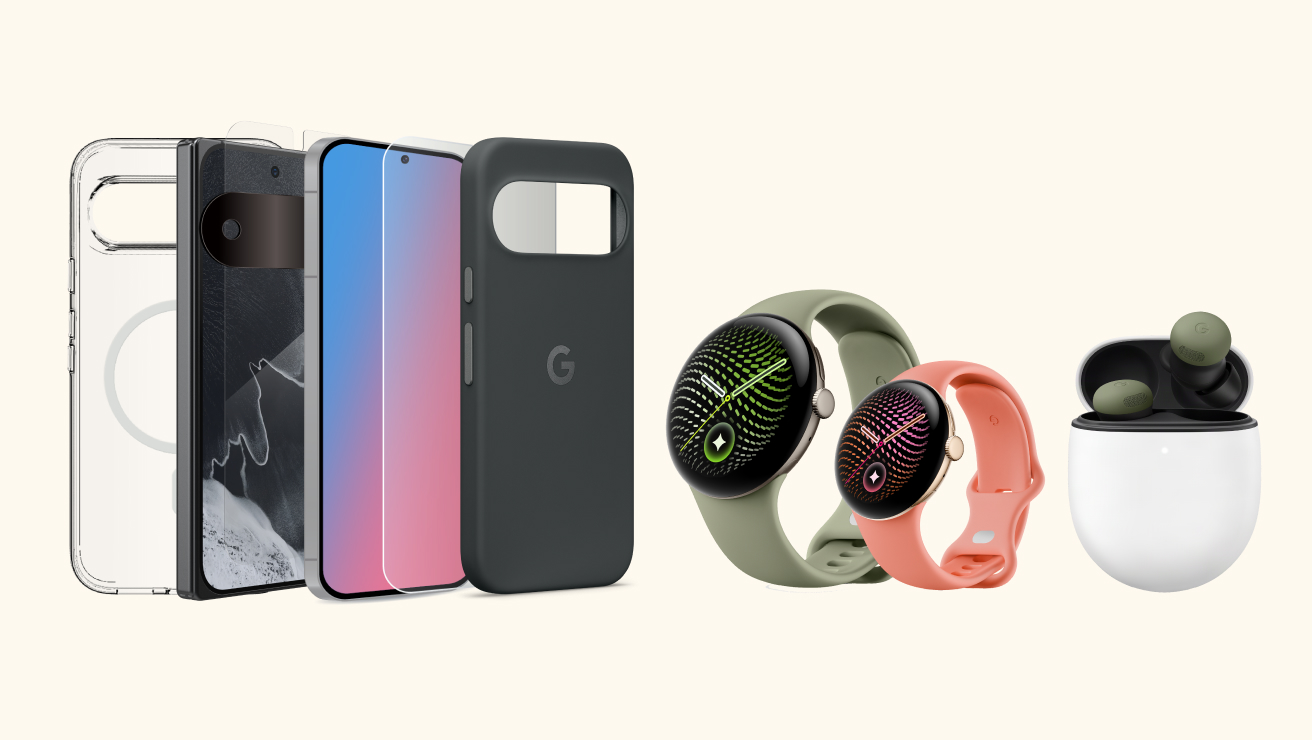
Looking to get more from your Google Pixel 11? Explore a range of accessories designed to enhance your Pixel experience, from durable cases to premium earbuds and smartwatches.
Unlock 6 awesome Apple Watch features with Telstra Watch Plan
Fun mode: activated. A week one checklist for Apple Watch with a Telstra Watch Plan. Dedicated to you and your little superhero.
4 minute read

Safety-first but make it second nature
Activating Telstra Watch Plan with Apple Watch is one small step towards their digital independence (and probably one giant leap for your peace of mind). But knowing how everything works is hands down the best way to ease your worries.
Before your child zooms off into the world with their shiny new wrist‑sidekick, spend some time with them learning about how Telstra Watch Plan and Apple Watch work together.
Think of this as smartwatch bootcamp - so you're both ready for this.
Make this week Telstra Watch Plan Week
This is a magical time when fun things happen, independence soars - and you get to find out just how many times a day your small human can call you.
1. Apple Watch For Your Kids
Telstra Watch Plan and Apple Watch power your family's digital universe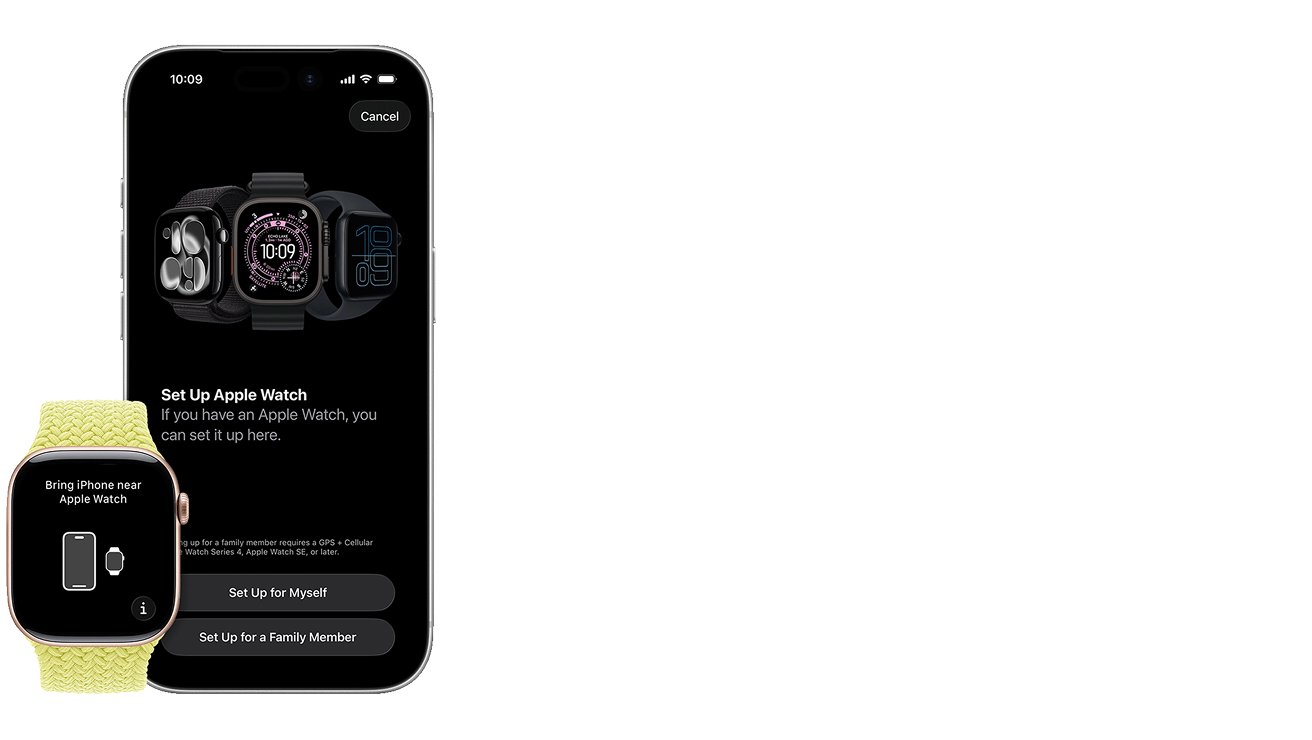
Apple Watch For Your Kids means you stay in control, while they get freedom with guardrails.
The whole set up lets your child call, message and share their location - all from their watch - while you manage everything from your iPhone. Access this feature from the Watch app on your iPhone.
How it works
- Your child can call, message and share their whereabouts from their watch
- You choose their contacts, Schooltime hours and content restrictions
- Everything is managed from your iPhone
Ready to touch base?
Setup is simple and your iPhone will guide you, step-by-step:
- Get your child to put on their watch and turn it on
- Head to our Telstra Watch Plan support page
- Follow the detailed steps to set up Telstra Watch Plan and your Apple Watch
2. Calling and messaging trusted contacts
Telstra Watch Plan and Apple Watch create a direct line to Mum and Dad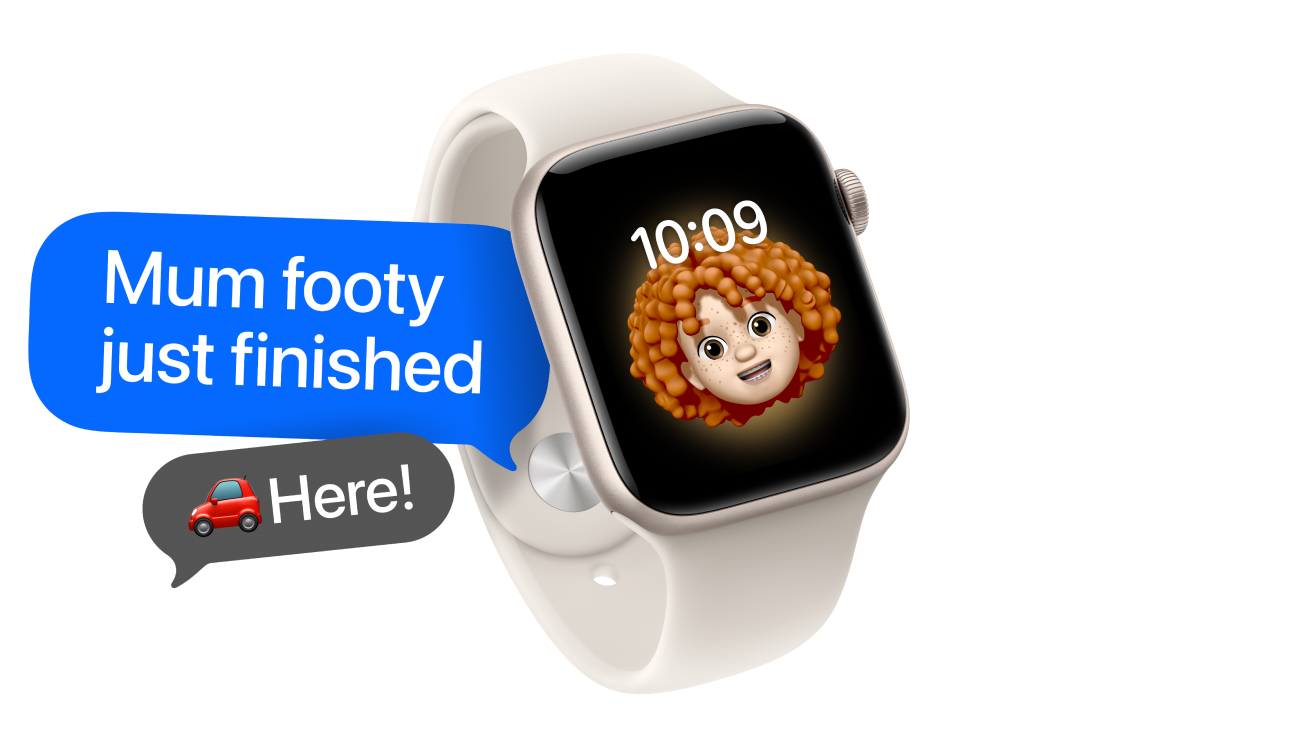
Set up trusted contacts from the Watch app on your own iPhone, so your kid can contact the people you approve - including you. Many times a day.
How it works
- You and your child can call or message each other instantly
- Only the contacts you approve appear on their watch
Ready to call?
Start by setting up trusted contacts for your child's Apple Watch:
- Enable Contacts in iCloud on your iPhone
- Choose Trusted Contacts from your Contacts app to share with their watch
Test it out:
- Call your child on their own Telstra Watch Plan number from your iPhone
- Get them to send you a message and confirm you receive it
- Add a new approved contact and confirm as it appears on their watch
3. Location alerts
Telstra Watch Plan and Apple Watch help you keep tabs on where they are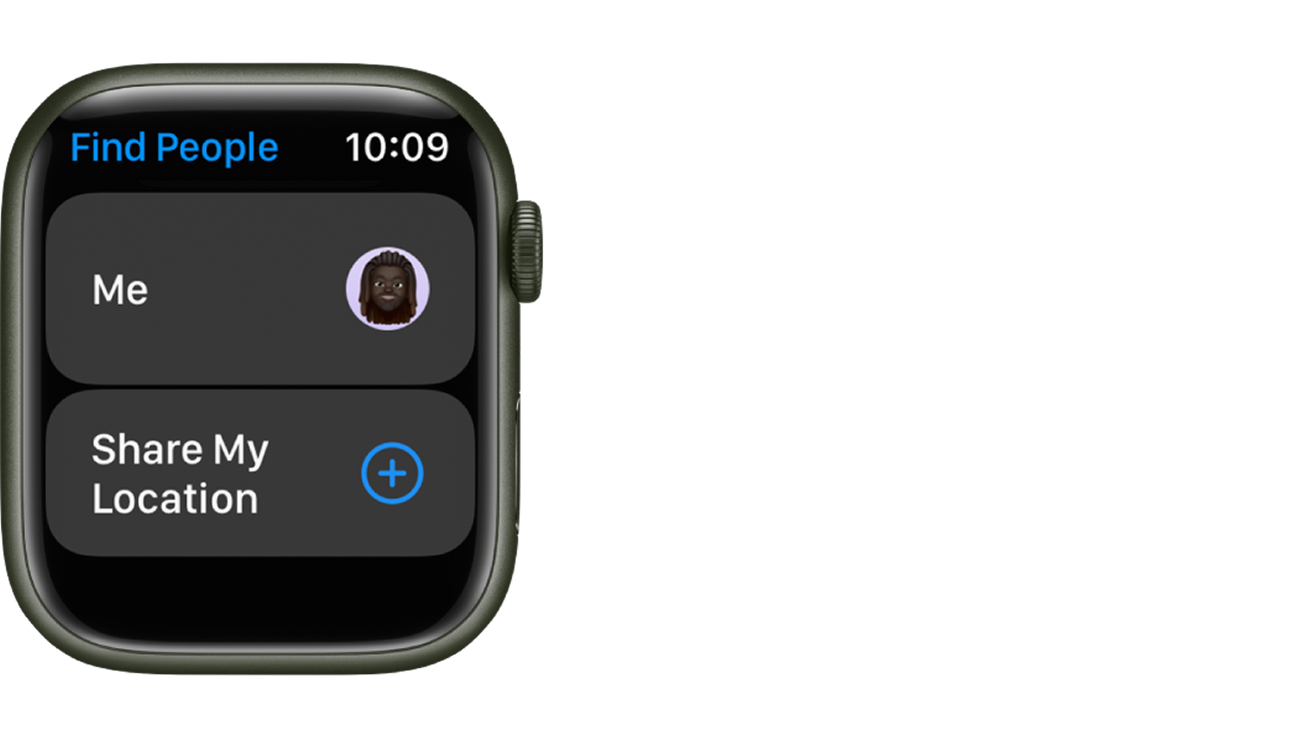
Kids often forget to tell you what they're up to. Thankfully, location sharing from Messages or via the Find My app lets you see where they are when they’re connected to our network.
And if you're happy to, they can also see where you are (just be ready for questions like, "Dad, what were you doing at the supermarket today for 37 minutes?").
How it works
- Their location updates on your iPhone
- You can set arrival alerts (like, Arrives at school)
Ready to test this out?
- Get them to walk somewhere nearby
- Check their location has updated on your iPhone
- Set an alert for arrives at home (your child needs to approve this)
- Confirm it triggers
4. Schooltime
Apple Watch helps keep your child's attention in the classroom
Helps your kid stay focused by muting notifications during school hours.
Because attention loves to w-a-n-d-e-r.
How it works
Schooltime helps keep kids focused by automatically placing a do not disturb block on their Apple Watch during a pre-set schedule set up from your iPhone (such as 9 to 3, weekdays)
- As Schooltime activates, their watch switches to a yellow Schooltime screen
- Access to apps is restricted and do not disturb is turned on
- Kids can exit briefly by lowering their wrist - unlocks are logged in the Watch app, Schooltime turns back on during scheduled hours
- You can override Schooltime, anytime
Ready to activate?
- Open the Apple Watch app on your iPhone.
- Tap My Watch → choose their watch → Schooltime
- Turn it on → Edit Schedule (such as, weekdays 9-3)
- Your child can also turn on Schooltime from Control Center if they want extra focus
5. Activity Rings
Apple Watch helps activate their healthy habits 
Apple Watch is packed with ways for them to run, jump, walk, bike or dance off the kind of energy that mysteriously appears right before bedtime.
Fun fact: there's even a handwashing timer that's extremely useful before dinner.
How it works
- Activity Rings track their movement, exercise and standing
- They can use move minutes instead of calories
- Daylight exposure can be shared with you via the Health app
Ready to jump in?
Start a friendly family competition. Winner picks dessert.
6. Give it some attitude
Apple Watch is packed with all the fun stuff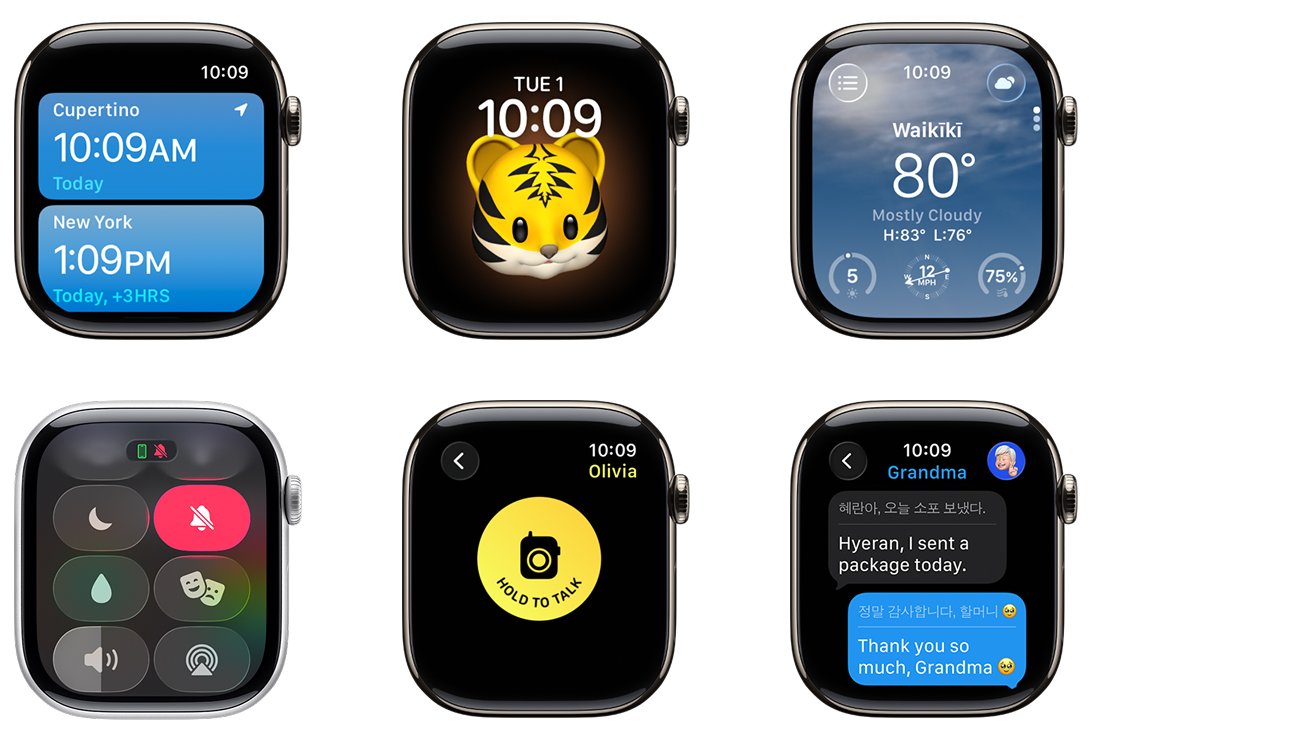
The amazing World Clock, funny (watch) faces, the weather, Walkie Talkie and quirky translations. There's just so much to explore.
And ringtones. Your kid will try every ringtone. Every. Single. One.
Ready for the fun stuff?
By now, you'll both be heroes with your Apple Watch, so simply follow the support instructions for each of these fun features.
- Add a faraway city with World Clock (prepare for announcements like, "it's 1:08 am in Ougadougou")
- Create a funny watch face
- Try Siri as their study buddy - to get info, activate Schooltime, ask the weather, set reminders
- Change or mute ringtone/volume and notification sounds
- Go full secret agent mode with Walkie Talkie
- Try Translate so they can read out your messages in 20 different languages
Is everything working as it should?
Small but mighty. That goes for your child and their Apple Watch. But before they take off, do one last quick check to make sure everything’s running smoothly. If something seems a bit wobbly, these simple steps usually save the day:
- Check the setup support page for Telstra Watch Plan
- Restart your watch
- Check you have mobile coverage
- Review Apple Watch For Your Kids settings
- Update your watch's OS
And just like that - whoosh! - they're ready to take off on their fearless digital adventure. Cape optional.
FAQs about Apple Watch
Set up and manage your child's Apple Watch from your iPhone via Apple Watch for Your Kids. It's working properly when it:
- shows an active Telstra network indicator
- reliably shares its location
- can send/receive messages smoothly
- allows you to configure parental controls from your iPhone
For setup, follow the checklist steps in this article or find complete setup instructions on this Apple support page.
Yes, you can completely control and restrict who your child contacts on their Apple Watch via Set Up Apple Watch for Your Kids.
Manage this from your own iPhone:
- Open Settings on your iPhone
- Tap Screen Time
- Tap on your child's name under the Family heading
- Tap Communication Limits
- To retstrict who they can call and text: Set the limit to Contacts Only or Specific Contacts for both Screen Time and Downtime
- Toggle Manage [your child's name] Contacts to manually add, edit, or approve who is in their address book
- You can also toggle off Allow Contact Editing to prevent your child from adding unapproved contacts on their own
To help make sure the location sharing of your Apple Watch is accurate - both your watch and its paired iPhone must have Wi-Fi enabled.
When Apple Watch is connected to our mobile network, it may show:
- Approximate or delayed locations due to Wi-Fi hardware that has been toggled off
- GPS signal blockages or restricted mobile privacy settings. Mobile towers alone can only narrow down location to a general area.
Your Apple Watch needs specific conditions to provide precise location coordinates:
- Ensure Wi-Fi is toggled on from Settings > Wi-Fi (it does not need to be actively connected to a network - the antenna needs to be on to scan nearby routers). Apple Watch relies on a crowd-sourced database of Wi-Fi router beacons to quickly establish a precise location fix when GPS is weak.
- Enable Precise Location for the apps you use.
Telstra Watch Plan lets your kids fly solo
While you run the flight deck. Our plan features its own number, unlimited calls/texts, 2GB data and data sharing.
Explore more on these topics
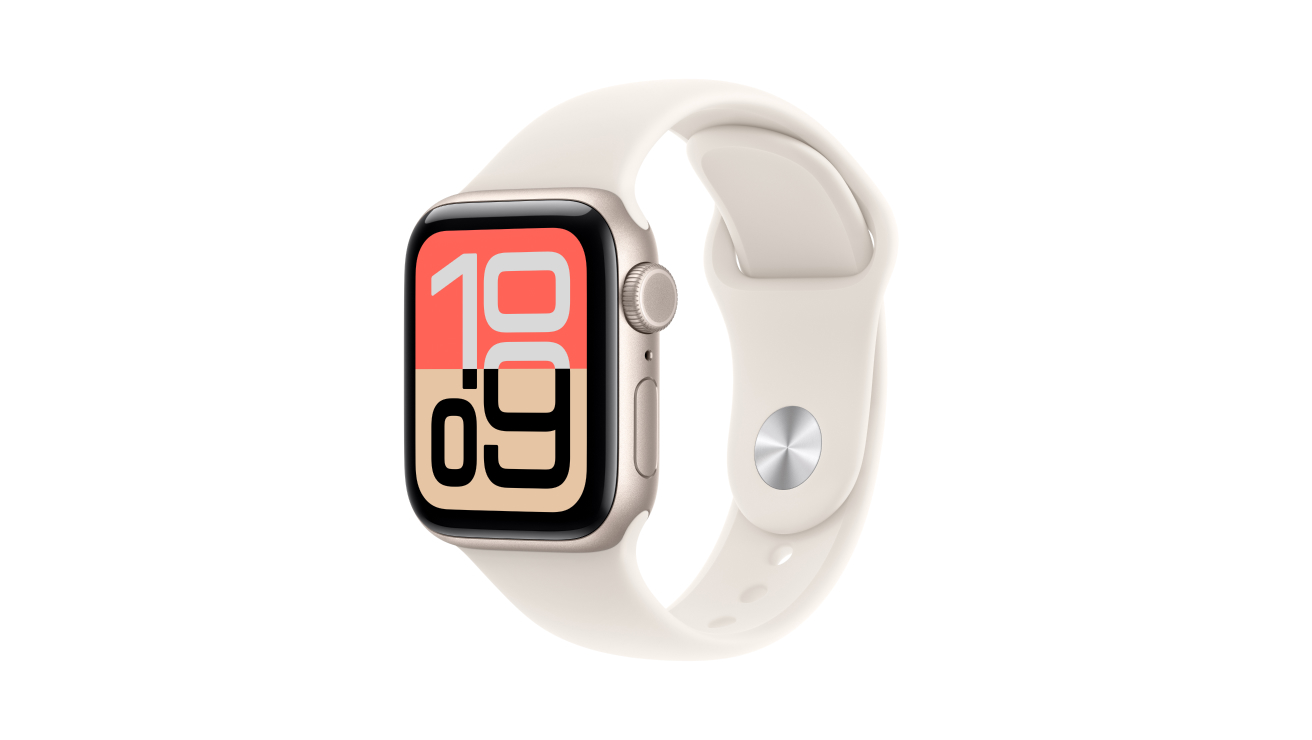
Apple Watch For Your Kids
Exactly the right amount of independence before they go full digital.
Meet Apple Watch For Your KidsWe also recommend
-
-
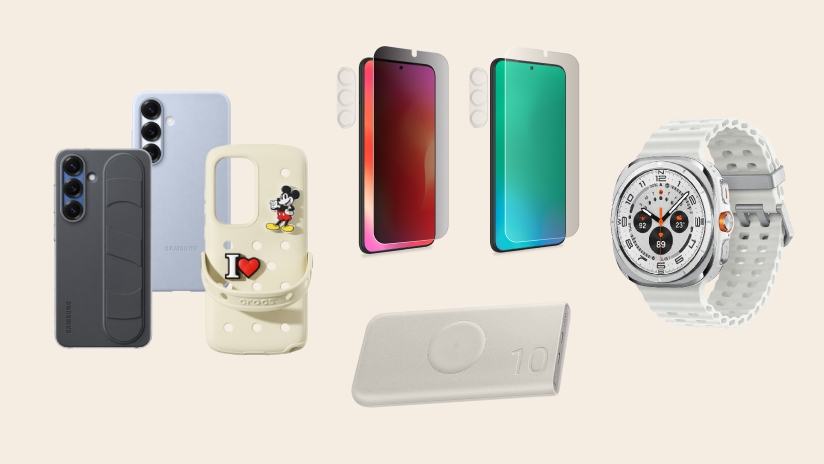
We've curated the best accessories for your Samsung Galaxy S25, combining style and practicality to enhance your device. Shop top picks for cases, protection and more.
-
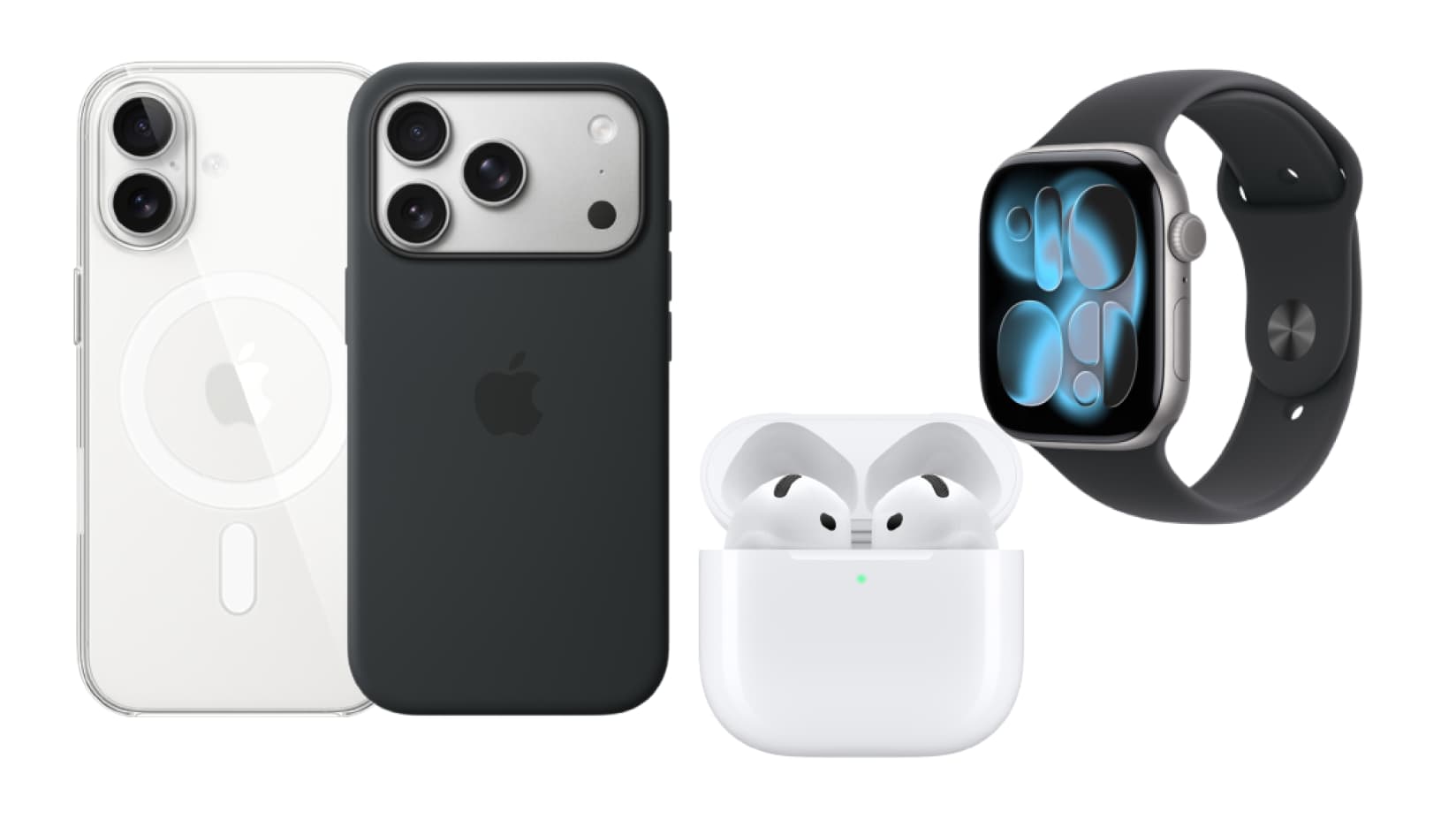
From the latest Apple Watch to AirPods and sleek iPhone cases, here are all the must-have accessories to complement your Apple ecosystem.